How to Program the TPMS Automatically
This guide describes how to automatically program CGSULIT TPMS sensors using the TPMS90 device. You will also find a video tutorial at the bottom of the page.
1. Verification of vehicle initialization
• On the TPMS90 device, select the Advanced Mode icon in the main menu.
• Select the vehicle make, type, and model.
• Select the Information option to verify the initialization method.
• Enter the OE Sensor Information menu.
• On the third line, check the Relearn Type – A option.
If Relearn Type – A is listed, the vehicle supports automatic initialization of TPMS sensors, which means that after the sensors are mounted on the wheels, the vehicle will automatically initialize them, and we recommend this procedure.
For some vehicles, initialization must be performed using a diagnostic tool (TPMS90 or any diagnostic tool with TPMS initialization capability); in such cases, the Relearn Type entry displays the letter O. You can proceed, but we recommend programming the valves via OBD-II or as copies of the original ones.
The third option is stationary initialization (letter S); here, initialization must be performed in the vehicle settings. You can continue, but we recommend programming the valves via OBD-II or as copies of the original ones.
If the letter C is listed under the Relearn Type field, this procedure is not suitable; you must create new sensors as copies of the original ones.
2. Automatic creation
and loading of sensors
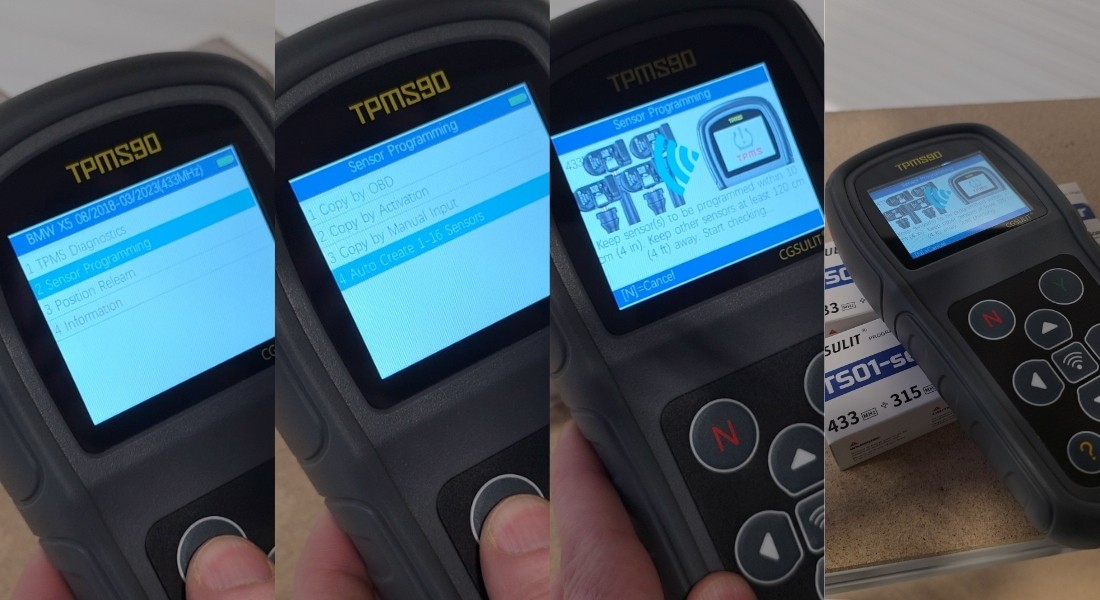
• Return to the main menu.
• Select the Sensor Programming function.
• Select the Auto Create 1–16 Sensors option.
After selecting this function, the device will automatically begin searching for and reading the nearest TPMS sensors.
Recommendation:
• Keep the sensors (valves) as close to the device as possible.
• This minimizes the risk of incorrect or incomplete readings.
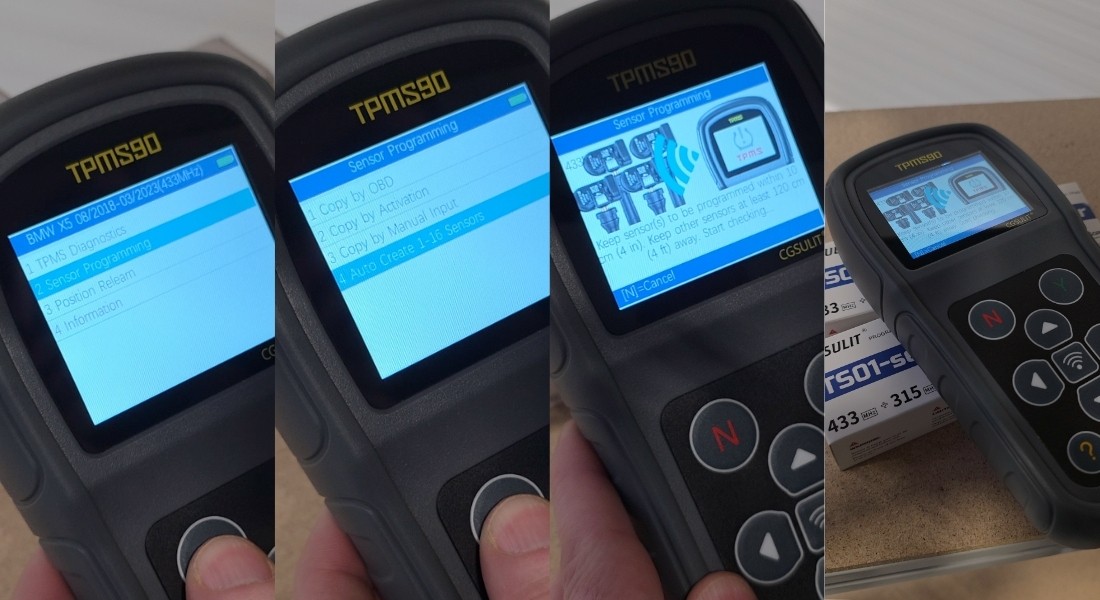
3. Programming Sensors
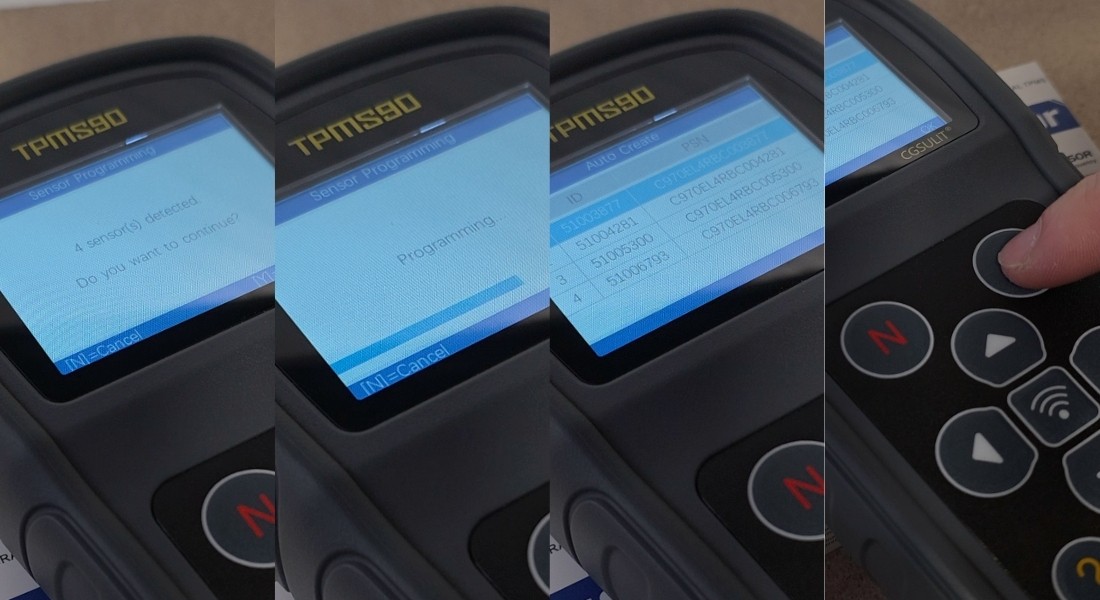
• Once the device has detected all required sensors, confirm your selection by pressing the Y button.
• The device will automatically begin programming the sensors.
When programming is complete, the Auto Create screen will display:
• Sensor serial number
• Sensor ID
• Confirm by pressing Y
IMPORTANT NOTICE:
During programming, all sensors that you do not want to program must be at least 120 cm away from the sensor currently being programmed. Otherwise, the device may detect another sensor in the vicinity.